
Guide
Why did my colors smudge?
A dark color bleeding into a light one on a multi-color print, and the one setting that fixes it.
- Fix it inFlushing volumes
- Dark → light500 mm³ or more
- Costsa few grams
What you see
A small light detail comes out gray or muddy: a yellow nose, a white eye, a flower center. It happens where the print has just used a dark color.
Why it happens
When the AMS swaps filament, some of the old color is still in the hot end. The printer pushes the new filament through (the purge, or flush) until it runs clean, into the chute and the prime tower.
If the purge is too small, the leftover color tints the first bit of the new one. Going from dark to light needs the most: a little black shows in yellow, but a little yellow never shows in black.
Small details show it first, because they are printed right after the swap and are over before the color runs clean.
How we found it
On one of our coaster plates, two of four yellow noses came out greenish gray. The purge from black to yellow was only 136 mm³. The file had kept a purge table made for the same colors in a different order, so the numbers belonged to the wrong pairs. Sized from the real colors, black to yellow is 745 mm³, and the noses print clean.
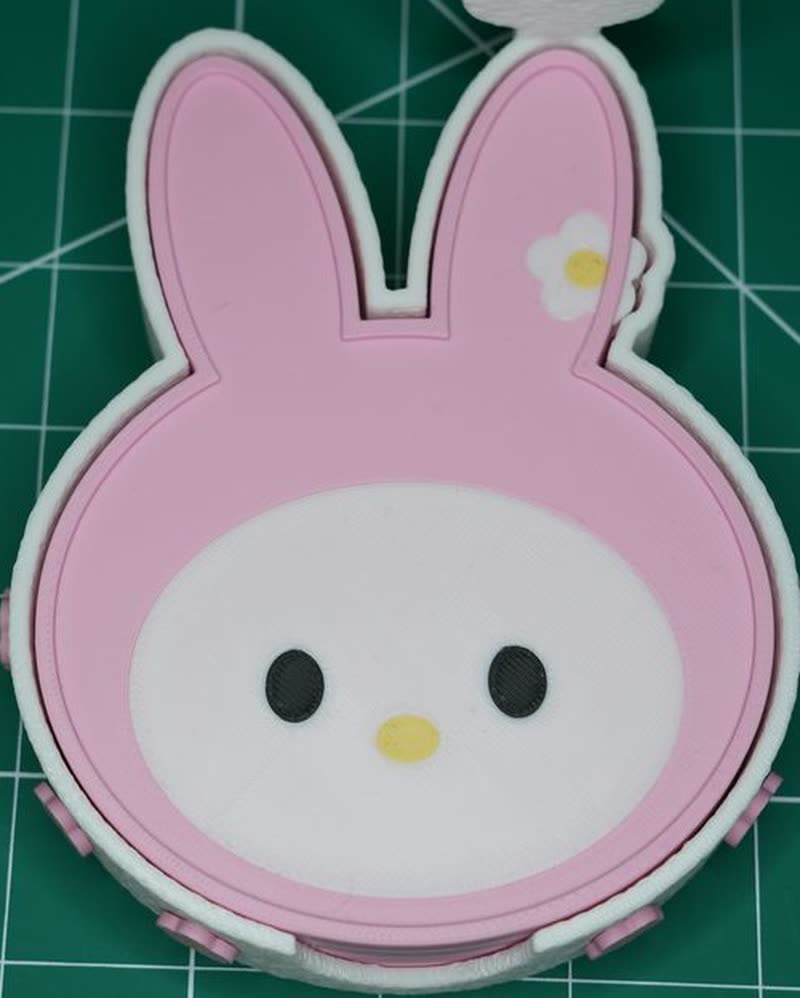
Supposed to be: a clean yellow nose and flower center.
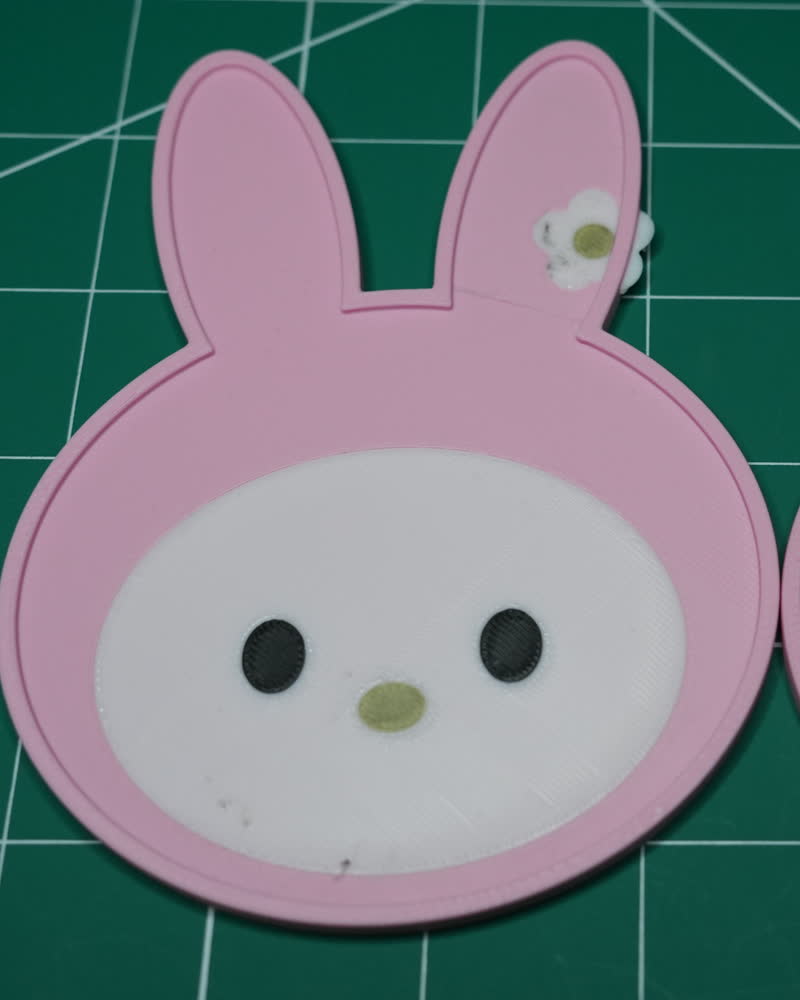
What came out: black bled into the yellow: an olive nose.
Black specks are a different problem
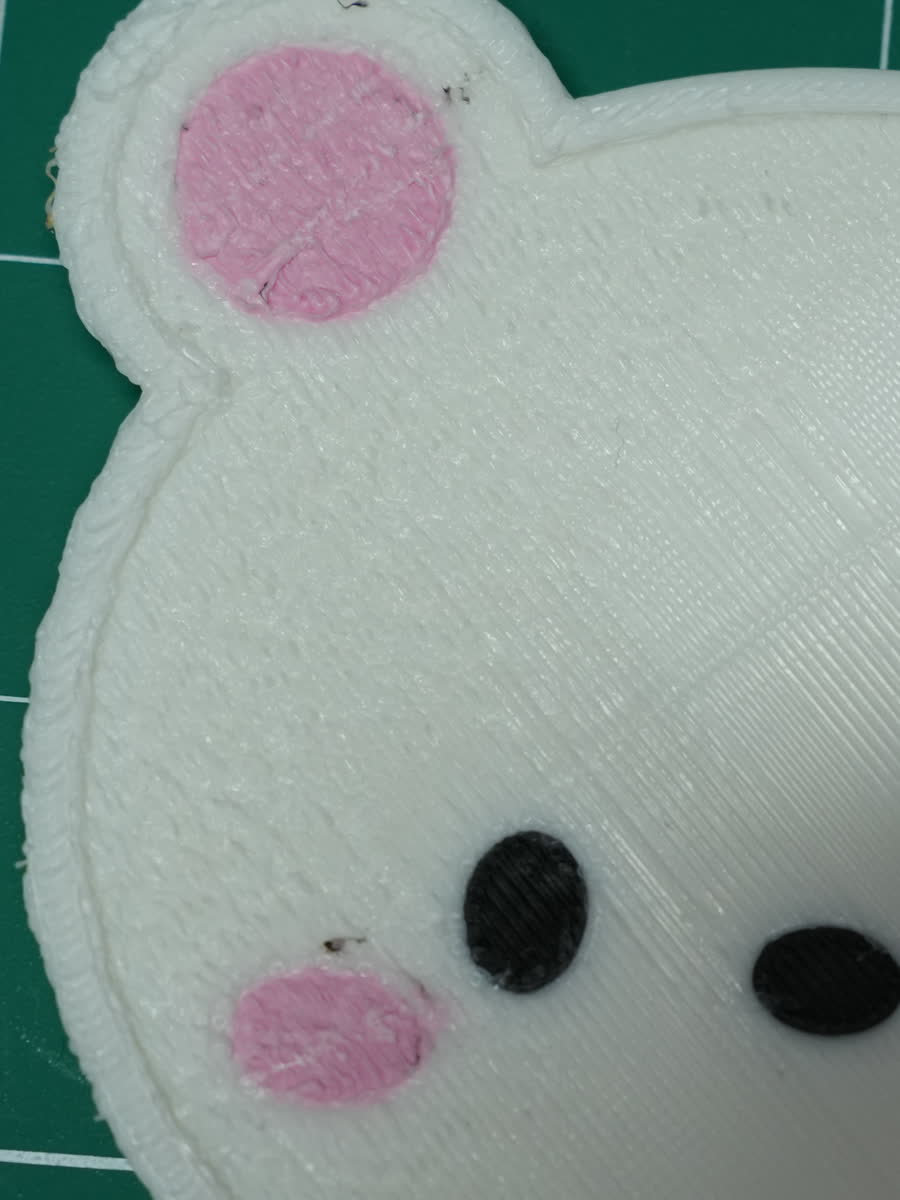
Tiny black flecks in a white face or a pink cheek are not a short purge. They are black carried on the outside of the nozzle and wiped off onto the next color.
Keep the big dark-to-light purge, keep the prime tower on, and brush the nozzle clean before a multi-color print.
The fix
- In Bambu Studio, open Project Filaments → Flushing volumes.
- Read the table: each row is the color you come FROM, each column the color you go TO.
- Check every dark → light pair (black to yellow, white or pink). Around 500 mm³ or more is right; 700–800 for black to white or yellow.
- Changed the colors in your slots? Press Re-calculate, so the table matches the new colors.
- For tiny light details, raise the Multiplier to 1.2–1.5.
| Color change | Before | After |
|---|---|---|
| Black → yellow | 136 | 745 |
| Black → white | 532 | 808 |
| White → black | 198 | 279 |
Tips from the workshop
- Light to dark needs little purge, so a good table is lopsided: big numbers in the dark rows.
- Keep "Flush into objects' infill" off on light or see-through parts: the purge color can show through.
- The extra purge costs a few grams per plate: about 2.4 g of yellow on our two-coaster plate.
- Slice, then look at the first layers of each small detail in Preview before you print.
The experiments behind our rules are written up in the Lab.